Turn your most-pasted prompt into a Claude Code skill
A working Claude Code skill of your own: one folder and one SKILL.md file that gives you a new /command, which Claude also loads by itself when your request matches. You'll build the summarize-changes skill from the official docs, see how one line pipes your live git diff in before Claude reads it, choose whether the skill is just for you or for your whole team, and leave with a prompt that turns your own most-repeated instructions into a skill.
- Time
- 5 minutes for your first skill
- Tools
- Claude Code
- Keyword
- SLASH
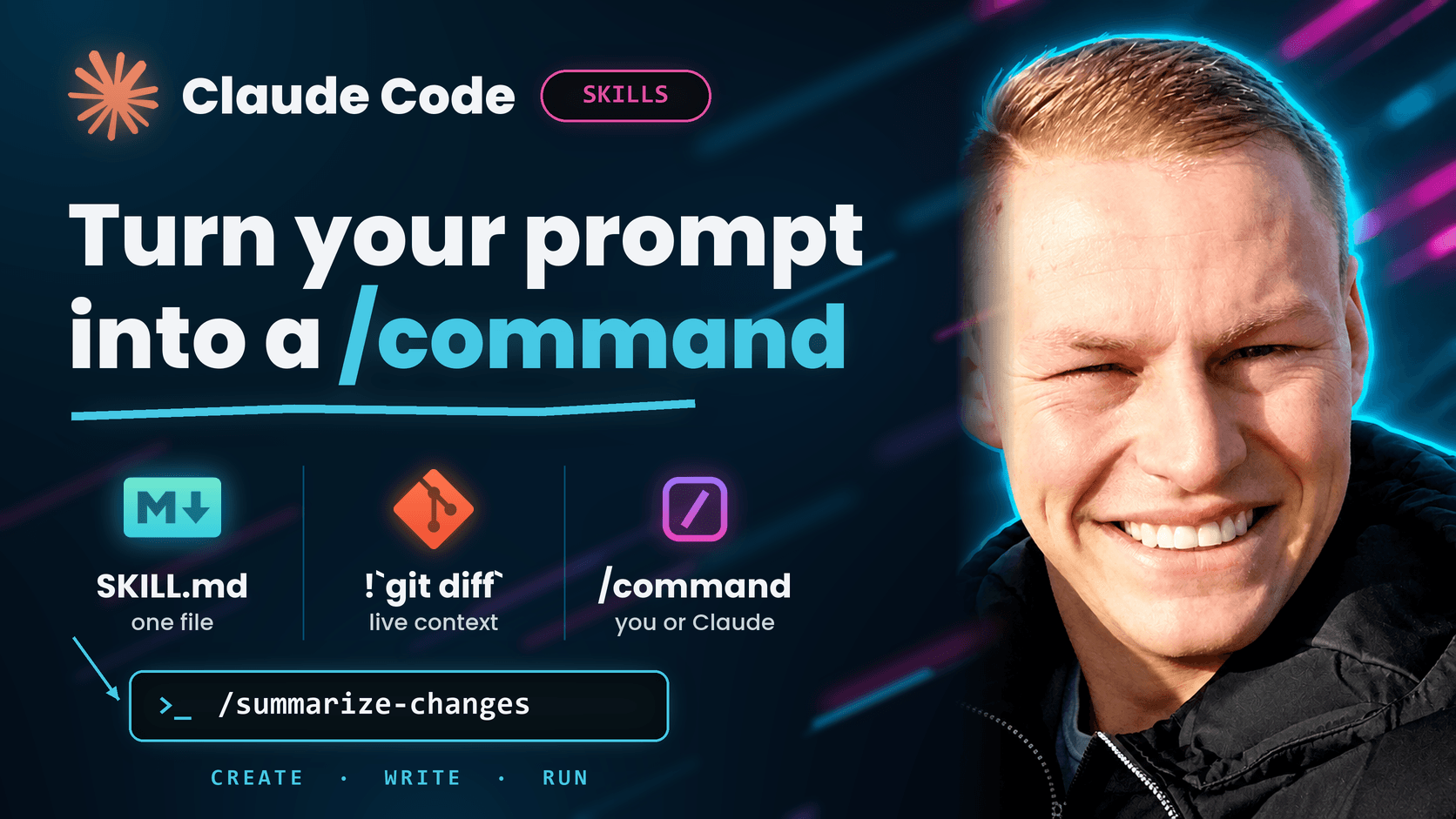
Know what a skill is and when to make one
A skill is a folder with a SKILL.md file inside. The file holds instructions, and Claude Code adds it to its toolkit: you can run it yourself as /skill-name, or Claude loads it on its own when your request matches what the skill is for. The official docs give a simple rule for when to make one: you keep pasting the same instructions, checklist or multi-step procedure into chat, or a section of your CLAUDE.md has grown into a procedure rather than a fact. The big difference from CLAUDE.md is cost. CLAUDE.md loads every session; a skill's body only loads when it's used, so long reference material costs almost nothing until you need it. If you have older custom commands in .claude/commands/, they keep working: commands have been merged into skills, and both create the same kind of /command. Everything in this guide comes from the Claude Code docs at code.claude.com/docs/en/skills, and the output shown in the carousel is from my own run of this exact skill.
Create the folder and write SKILL.md
Make a folder for the skill. The folder name becomes the command you type, so summarize-changes gives you /summarize-changes. Putting it under ~/.claude/skills/ makes it a personal skill that works in all your projects on this machine. Then save the file below as ~/.claude/skills/summarize-changes/SKILL.md. It has two parts: YAML frontmatter between the --- lines, and markdown instructions underneath. The description is the part that matters most, because Claude reads it to decide when to load the skill on its own, so put the main use case first. This is the example skill from the official docs, word for word.
Copy-paste promptmkdir -p ~/.claude/skills/summarize-changes # Save this as ~/.claude/skills/summarize-changes/SKILL.md --- description: Summarizes uncommitted changes and flags anything risky. Use when the user asks what changed, wants a commit message, or asks to review their diff. --- ## Current changes !`git diff HEAD` ## Instructions Summarize the changes above in two or three bullet points, then list any risks you notice such as missing error handling, hardcoded values, or tests that need updating. If the diff is empty, say there are no uncommitted changes.Understand the one line that makes it work: !`git diff HEAD`
The line !`git diff HEAD` is called dynamic context injection. Before Claude sees the skill, Claude Code runs that shell command and replaces the line with its output. So Claude doesn't guess what you changed from whatever files happen to be open: it starts with your real, current diff already pasted into its instructions. You can use the same trick with any command whose output Claude should start from, like a test run, a git log, or a status script. Keep the commands read-only and quick, since they run every time the skill does.
Run it two ways
Open a git project, change any file, and start Claude Code with claude. Then either ask a question that matches the description, like 'What did I change?', and Claude loads the skill itself, or type /summarize-changes to run it directly. You should get a short summary of your edit and a list of risks. When I ran it on a tiny cart.js change that added a hardcoded SAVE50 coupon, it flagged the hardcoded coupon string and discount rate, the missing validation on the coupon parameter, and the tests that would need updating. You can also run it without opening a session, using claude -p "/summarize-changes". If you edit the file while a session is open, Claude Code picks up the change without a restart.
Choose who gets the skill
Where you save the folder decides where the skill loads. Personal: ~/.claude/skills/<name>/SKILL.md works in all your projects on this machine. Project: .claude/skills/<name>/SKILL.md inside a repository works for sessions in that repo, so commit it and everyone on the team gets the same /command. Plugin: a skill shipped inside a plugin runs as /plugin-name:skill-name wherever the plugin is enabled. If a personal and a project skill share a name, the personal one wins. One catch from the docs: cloud sessions and Cowork don't read ~/.claude/skills/ on your machine, so for those, commit the skill to the repo or turn it on for your claude.ai account.
Pro tip: keep skills that do things under your control, and pass them arguments
Some skills only add knowledge; others take actions like deploying or sending a message. For the second kind, add disable-model-invocation: true to the frontmatter so Claude never runs it on its own and it only fires when you type the command. Add argument-hint to show what to type during autocomplete, and use $ARGUMENTS in the body for whatever you type after the name, so /deploy staging puts 'staging' where $ARGUMENTS is ($0, $1 and so on pick out single arguments). Two more frontmatter fields worth knowing: allowed-tools pre-approves tools while the skill runs, and context: fork runs the skill in its own subagent. Then use the prompt below to turn the instructions you paste most often into your own skill.
Copy-paste promptYou are helping me turn instructions I keep repeating into a Claude Code skill (a SKILL.md file). Here is what I keep pasting into chat, as close to word-for-word as I can get it: <repeated_instructions> [PASTE THE INSTRUCTIONS, CHECKLIST OR PROCEDURE YOU KEEP REPEATING] </repeated_instructions> Here is when I usually need it: <when_i_use_it> [e.g. "before every commit", "when reviewing a PR", "when writing a new API endpoint"] </when_i_use_it> Rules for you: - Use only what is in <repeated_instructions> and <when_i_use_it>. Do not add steps, checks or standards I didn't give you. If something looks missing, list it under "Questions" instead of adding it. - Use only real SKILL.md frontmatter fields: name, description, disable-model-invocation, argument-hint, allowed-tools, context. If you are not sure a field exists, leave it out. - If the skill takes an action with side effects (deploying, sending, deleting, committing), set disable-model-invocation: true so only I can trigger it. - If the instructions depend on live data such as a diff, test output or logs, suggest a !`command` line that pulls it in, and keep that command read-only. Do this, in order: 1. Propose a short folder name, since it becomes the /command. 2. Write the description with the main use case first, in words I would actually type when I need it. 3. Write the complete SKILL.md, ready to save at ~/.claude/skills/<folder-name>/SKILL.md. 4. List any questions or assumptions under "Questions" so I can fix them before I save it.
Read next
- The GitHub repo that upgrades your CopilotStop using Copilot naked. This repo is the config nobody tells you about.
- Prepare for the Chief Agent Officer roleThe role is 80% governance, not prompting. Prepare for the real job.
- The Microsoft playbook for leading a digital workforceMicrosoft's own framing: govern agents as a workforce, not as software.